Changing localization
This section explains how to change the current language of the VIROO Application, which can be done from an Action or with custom code.
Changing current language at runtime using Actions
VIROO Studio provides an Action to change the Application's current language at runtime. This Action is run only by the user triggering the Action. If you want to change the current language for all users in the session, you should use UnityEventActions to synchronize running this action.
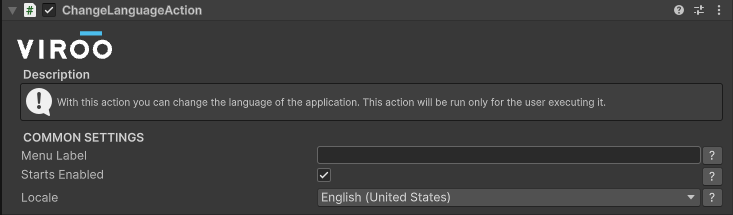
You will find more information about this Action in the ChangeLanguageAction.
Changing current language at runtime using custom code
It's possible to change the Application's current language through custom code using the following services provided by VIROO Studio:
| ILocalizationService | |
|---|---|
| Property | Usage |
| CurrentCulture | Gets and sets the current culture for the application. |
| AvailableCultures | The languages supported by the VIROO core. Main VIROO interfaces are translated to these languages. |
| ISceneLocalizationService | |
|---|---|
| Property | Usage |
| CurrentCulture | Gets the current culture for the current Unity scene. |
| AvailableCultures | The languages configured in the current Unity scene in the SceneConfiguration component. |
The only way to change the current language is through the ILocalizationServices CurrentCulture property. When this property is set, the following steps take place in the following order:
- The class implementing
ILocalizationServicechecks if the desired language is supported by VIROO's core languages.- If the language is among the supported languages, the application changes it's current localization to that language,
CurrentCulturechanges its value to that language, theOnCultureChangedevent is triggered. - If the language isn't among the supported languages, the application doesn't change its current localization.
- If the language is among the supported languages, the application changes it's current localization to that language,
- The class implementing
ISceneLocalizationServicechecks if the desired language is supported by theSceneConfigurationcomponent.- If the Unity scene doesn't contain any
SceneConfigurationcomponent, VIROO's default languages are used as the Unity scene's languages. - If the Unity scene contains a
SceneConfigurationcomponent, the languages defined and enabled in the component are used as the Unity scene's languages. - If the language to set is among the languages defined for the Unity scene
CurrentCulturechanges its value to that language and theOnCultureChangedevent is triggered. - If the language to set isn't among the languages defined for the Unity scene, the Unity scene's localization changes to the fallback language set in the
SceneConfiguration. If that language is different to the current language before trying to set a new one, the Unity scene's localization aware components' behaviours are triggered,CurrentCulturechanges its value to that language and theOnCultureChangedevent is triggered.
- If the Unity scene doesn't contain any
This process tries to set everything (application UI and scene elements) to the same language. It takes into account that every scene may define a different collection of available languages, and these languages may or may not match Viroo's core languages. It also implements fallback mechanisms for the cases when switching to a specific language isn't possible.
Users should use ISceneLocalizationService's CurrentCulture to get the languages they have defined and ILocalizationService's CurrentCulture to trigger the language change process.
The following snippet shows how to change the language following these concepts:
using System;
using System.Globalization;
using UnityEngine;
using Viroo.SceneLoader.SceneContext;
using Virtualware.Localization;

public class LanguageChangeTest : MonoBehaviour
{
    private ILocalizationService localizationService;
    private ISceneLocalizationService sceneLocalizationService;

    protected void Inject(ILocalizationService localizationService, ISceneLocalizationService sceneLocalizationService)
    {
        this.localizationService = localizationService;
        this.sceneLocalizationService = sceneLocalizationService;

        localizationService.OnCultureChanged += OnVirooCultureChanged;
        sceneLocalizationService.OnInitialized += OnSceneCulturesInitialized;
        sceneLocalizationService.OnCultureChanged += OnSceneCultureChanged;
    }

    protected void Awake()
    {
        this.QueueForInject();
    }

    protected void OnDestroy()
    {
        if (localizationService != null)
        {
            localizationService.OnCultureChanged -= OnVirooCultureChanged;
        }

        if (sceneLocalizationService != null)
        {
            sceneLocalizationService.OnInitialized += OnSceneCulturesInitialized;
            sceneLocalizationService.OnCultureChanged -= OnSceneCultureChanged;
        }
    }

    private void OnVirooCultureChanged(object sender, CultureChangedEventArgs args)
    {
        Debug.Log($"Current VIROO language set to {args.CurrentCulture}, previous language was {args.PreviousCulture}");
    }

    private void OnSceneCulturesInitialized(object sender, EventArgs args)
    {
        Debug.Log($"Languages defined in the current scene: {string.Join(",", sceneLocalizationService.AvailableCultures)}");
    }

    private void OnSceneCultureChanged(object sender, SceneCultureChangedEventArgs args)
    {
        Debug.Log($"Current Scene language set to {args.CurrentCulture}, previous language was {args.PreviousCulture}");
    }

    [ContextMenu("Set language to English")]
    public void SetEnglish() => ChangeLanguage("en-US");

    [ContextMenu("Set language to Spanish")]
    public void SetSpanish() => ChangeLanguage("es-ES");

    [ContextMenu("Set language to Not supported language")]
    public void SetNotSupportedLanguage() => ChangeLanguage("sw");

    private void ChangeLanguage(string locale)
    {
        localizationService.CurrentCulture = CultureInfo.GetCultureInfo(locale);
    }
}
Localization and scene changes
When you change scenes the following steps take place in the following order:
- If the Unity scene doesn't contain any
SceneConfigurationcomponent:- VIROO's default languages are used as the Unity scene's languages.
- VIROO's
CurrentCultureis used as the scene'sCurrentCulture.
- If the Unity scene contains a
SceneConfigurationcomponent:- The enabled languages in
SceneConfigurationare used as the Unity scene's languages. - If the
CurrentCultureis already set inISceneLocalizationServiceand it's among the available languages for the scene, theCurrentCultureset inISceneLocalizationServiceis kept. - In the rest of the cases (
CurrentCulturenot set, or theCurrentCultureset inISceneLocalizationServiceisn't found in the list of available languages):- If VIROO's
CurrentCultureis among the scene's available languages, the scene'sCurrentCultureis set to VIROO'sCurrentCulture. - If VIROO's
CurrentCultureisn't among the scene's available languages, the scene'sCurrentCultureis set to theFallbackLocaleset inSceneConfiguration.
- If VIROO's
- The enabled languages in
This process tries to keep the current set language when changing scenes. If it isn't possible, it tries to match the scene's language to the current language set in the application. When that isn't possible, it uses the scene's fallback language.