Operation
Room Player is designed to provide streamlined session management and complete operational control of your immersive room, equipment, and applications.
Applications
The Applications tab displays all applications available to your organization, including their version, size, download status and if they have been recently used. From here you can download, update, or clear local cached versions when needed.
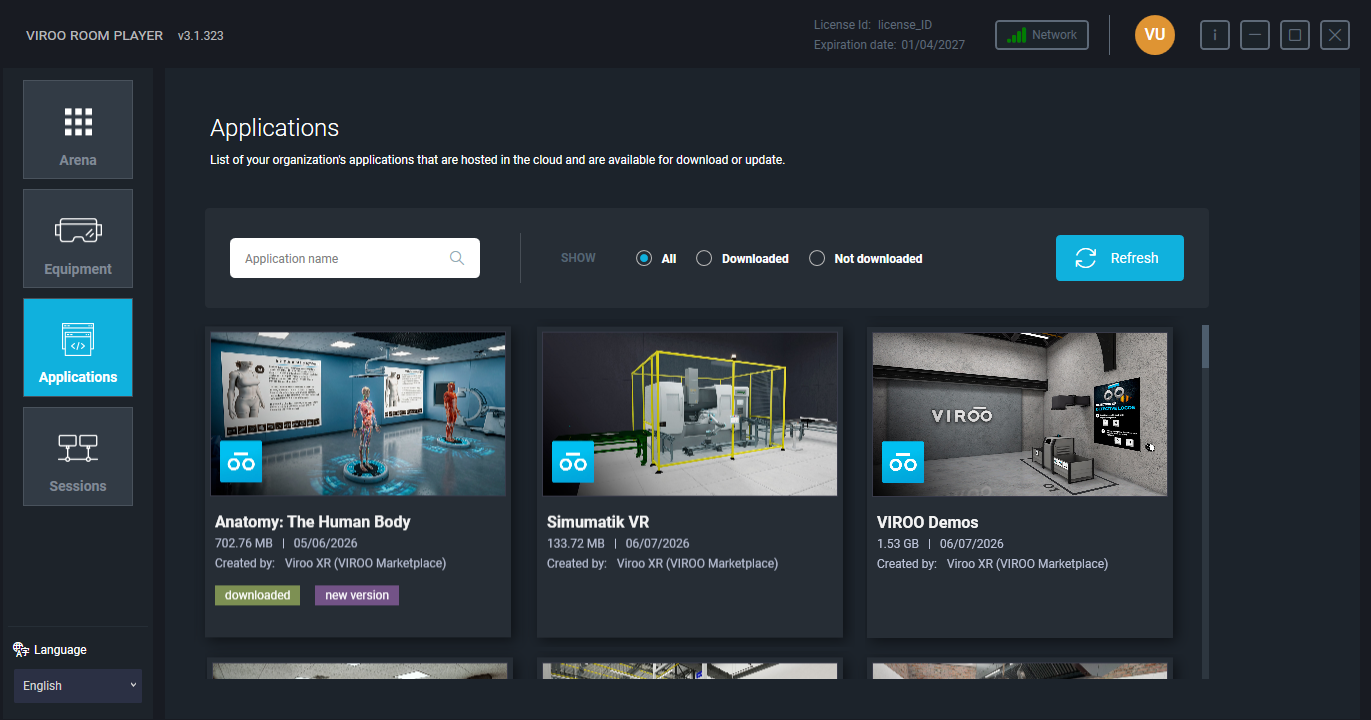
From the top bar, you can search or filter applications by All, Downloaded, or Not downloaded. Also the Refresh button can be used to check for updates.
When clicking on an app, an information window will pop up with the following information and options:
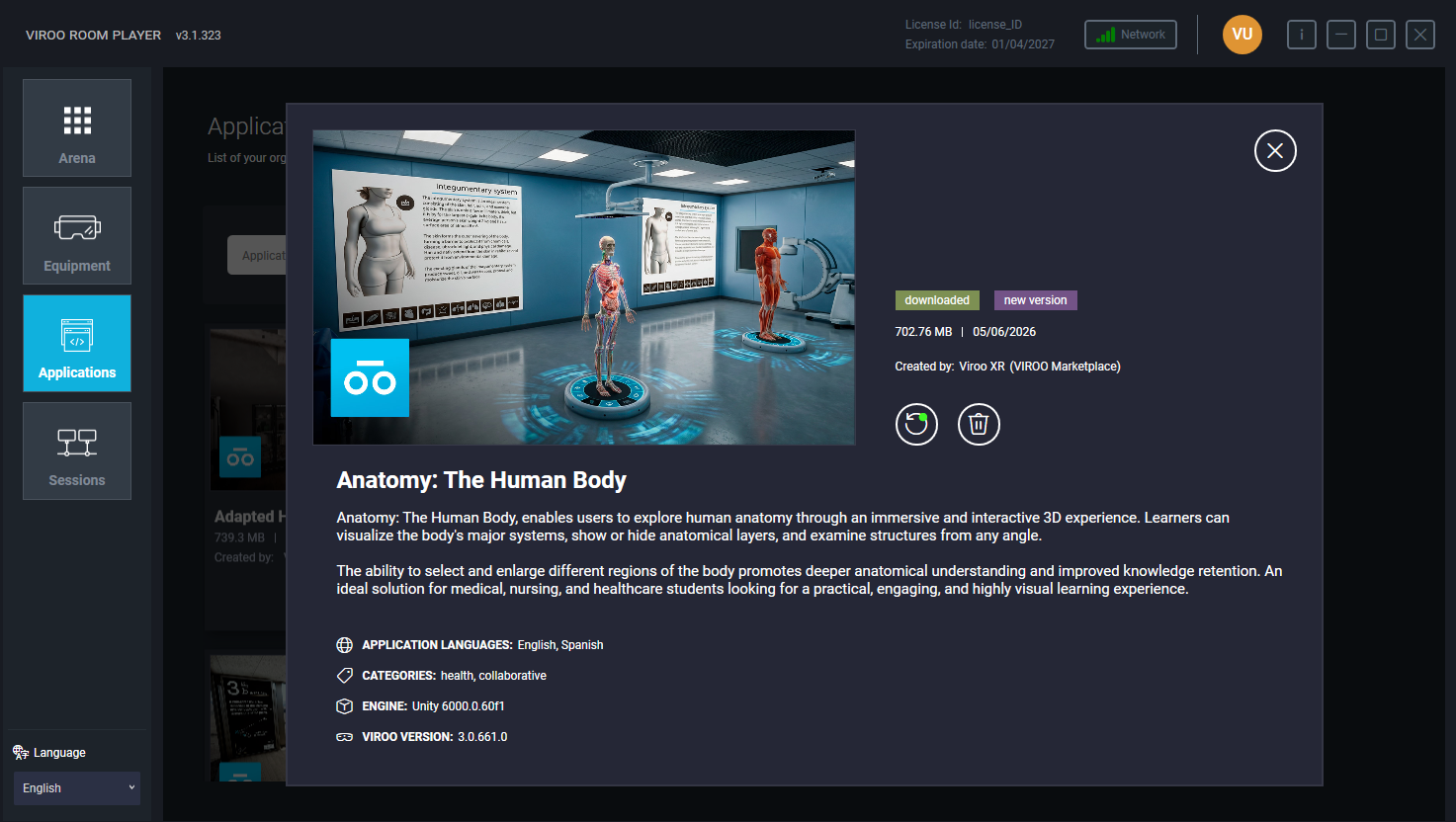
- App name, size, creation date and Created by information
- A cloud icon to download the application. A green dot on this icon indicates there's a new version available.
- A bin icon to clear the local cached copy (cloud version stays available).
- The app description as entered in VIROO Cloud
- Available languages
- Categories
- Engine (for example Unity)
- VIROO Studio package version
Note
- The version number besides the App name corresponds to the Viroo Studio production package version. You can find information about production package versions on the VIROO Studio Updates page.
Operation modes
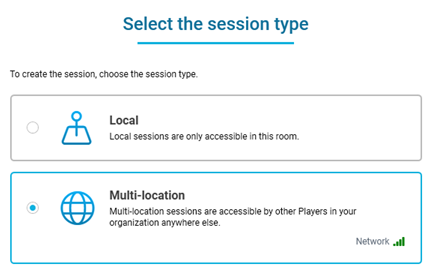
To improve flexibility for different deployment scenarios, Room Player includes session configuration options. During session creation, you can choose the session mode:
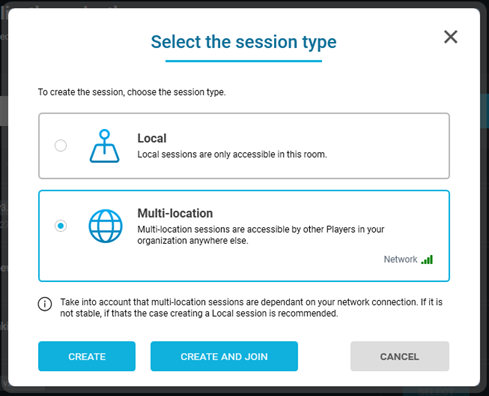
Local Mode: Runs the session on a local networking server, so only the equipment linked to the VIROO Room can join. Added to improve stability and remove external network factors that may affect the session.
Multi‑User Mode: Runs the session on a cloud networking server, allowing participants to join from anywhere and collaborate remotely.
Sessions
Creating a session
When Room Player starts, you will land on the Sessions tab, where all session creation and management tasks begin.
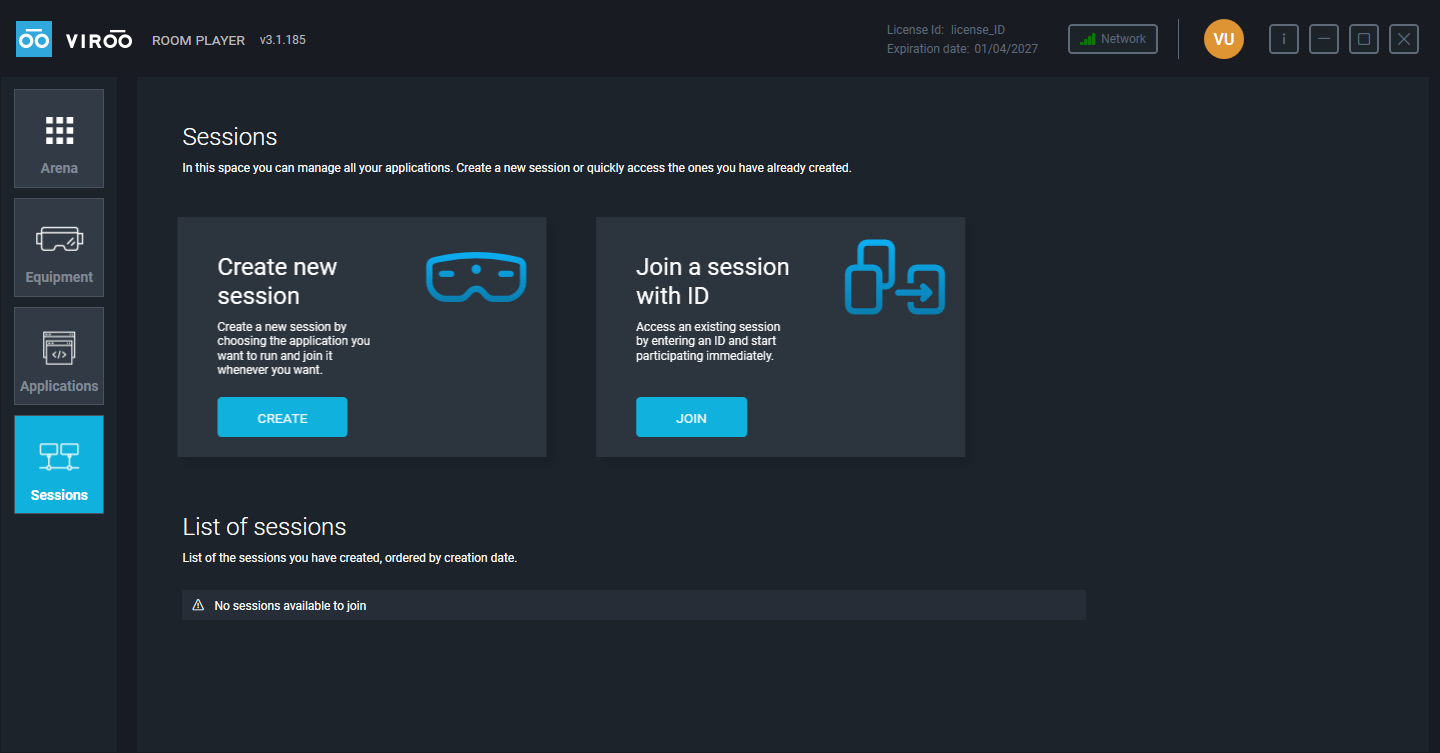
To create a session:
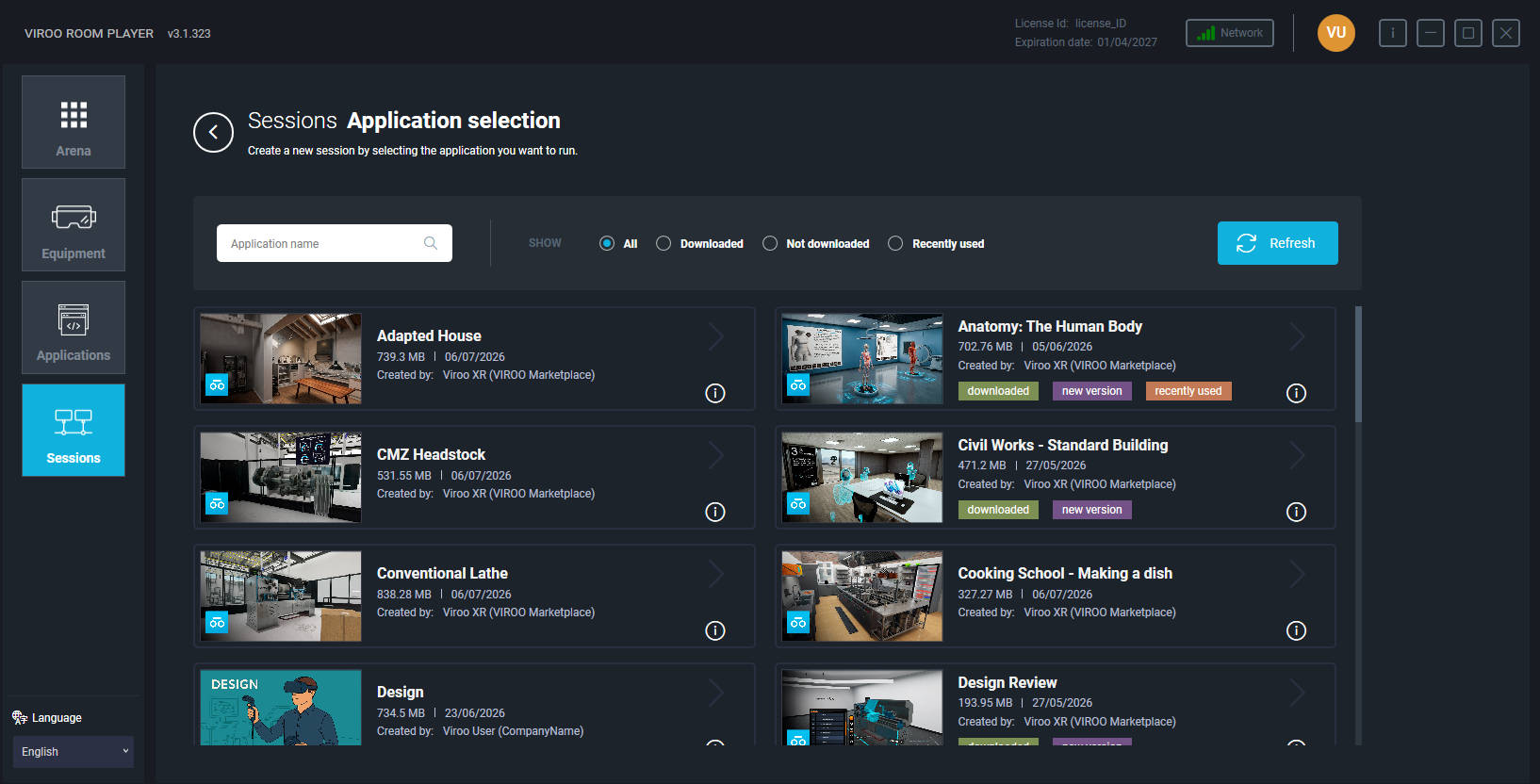
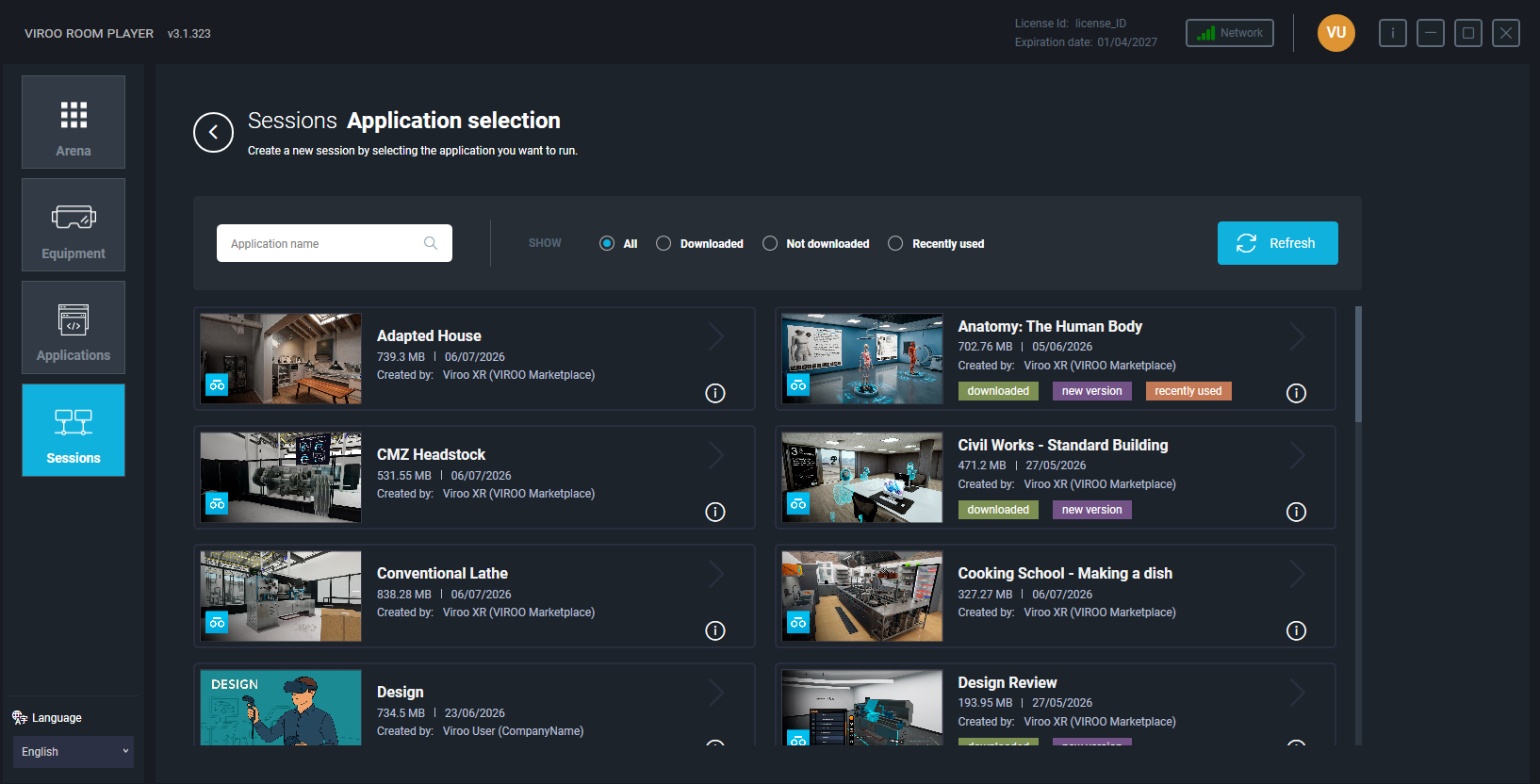
- On the Sessions tab, select CREATE. This opens the Applications panel, where:
- All available applications are listed.
- You can see which apps are already downloaded, recently used, or have an update available.
Note
- The [ i ] icon besides an app will show you the app information as in the Applications Tab.
- Select the application you want to use.
If the application isn't downloaded, you will be prompted to download it first. Additionally, if the app has been downloaded but not updated, you will be prompted to update, continue without updating, or cancel the operation. To operate in a multi-user environment, the app must be updated to the latest version.
Then choose the Session Type (Local or Multi‑location) and the Session Creation Type:
- Create: Creates the session so it appears in your session list, but doesn't launch the application yet. You can join it later when ready.
- Create and Join: Creates the session and joins it immediately.
If the session is only created, it will appear in the Sessions tab, showing:
- Its creation time.
- Session type.
- For multi‑location sessions a Session ID that can be copied.
Each session entry includes the following options:
- Copy Session ID - Lets you share the ID with other participants (multi‑location only).
- Close Session - Ends the session for all participants.
- Join Session - Joins the session.
Joining a session
If you need to join an existing session:
- Enter the specific Session ID in the field at the top and click Join Session, or
- Select one of your already created sessions from the list and click Join Session.
After you have joined an existing session, you will also be able to launch devices directly into it from the Arena tab.
Tip
You can join sessions across different organizations by entering the Session ID if both organizations have access to the same Viroo Application.
Batch actions
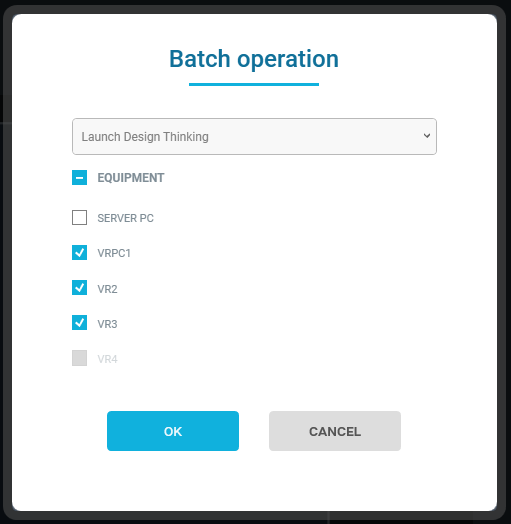
Once a session has been created and joined, Room Player will automatically go to the Arena tab and the Batch options will pop up. The Batch Mode enables you to manage devices simultaneously. Ideal for launching the experience on all headsets simultaneously, or for closing it at the same time.
Tip
- Only equipment that can currently perform the batch action is enabled for selection.
- Use the EQUIPMENT option to select all the equipment at the same time.
- Use the Launch option to operate with the headsets and the Launch Spectator or Launch Invisible Spectator to operate with the Server PC.
If you want to manually operate with Batch actions, click the Batch icon, choose your devices and pick an action.

Leave or close a session
Once you’ve joined a session, two options become available:
Close Session: If you are the session creator, this will end the session for all participants and disconnect all devices.
Leave Session: This will disconnect you from the session, and you will need to rejoin to play immersive content again. If you are the session creator, the session will remain active for other participants.
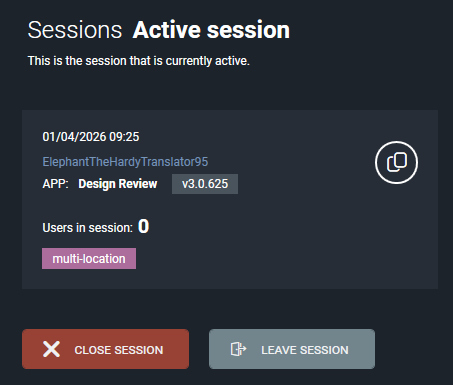
Only the session creator can close a session. Other players can join while it’s active and will be disconnected automatically if the creator closes it.