Application management
The new Applications service has been specifically designed to manage immersive content across all formats. It provides robust role-based access control (RBAC), secure content-sharing capabilities, and advanced content encryption, among others.
It combines a backend layer that delivers all core functionality and runs across any environment where VIROO is deployed, and a centralized management and administration layer available through viroo.cloud.
Applications are now managed as complete entities, with key improvements such as enriched metadata, built-in version management, granular sharing options (public, private, or per user) and multi-language support.
Note
- Customers used to access the earlier content service through the Applications section in the left sidebar of viroo.cloud. Now, the Applications section opens the new integrated Application Portal in viroo.cloud.
- To access the earlier content service, follow this link.
Accessing the applications module
Once you're logged into your Viroo Cloud, you can access your organization's VIROO Applications through the Applications module from the left sidebar. Users without the content manager role can still open this module and view the list of applications, but they can't create, edit, delete, or share applications.
To access the Application module:
- Go to https://viroo.cloud
- In the left sidebar, select the Applications section
This will open the Applications module, where all applications in your organization are listed.
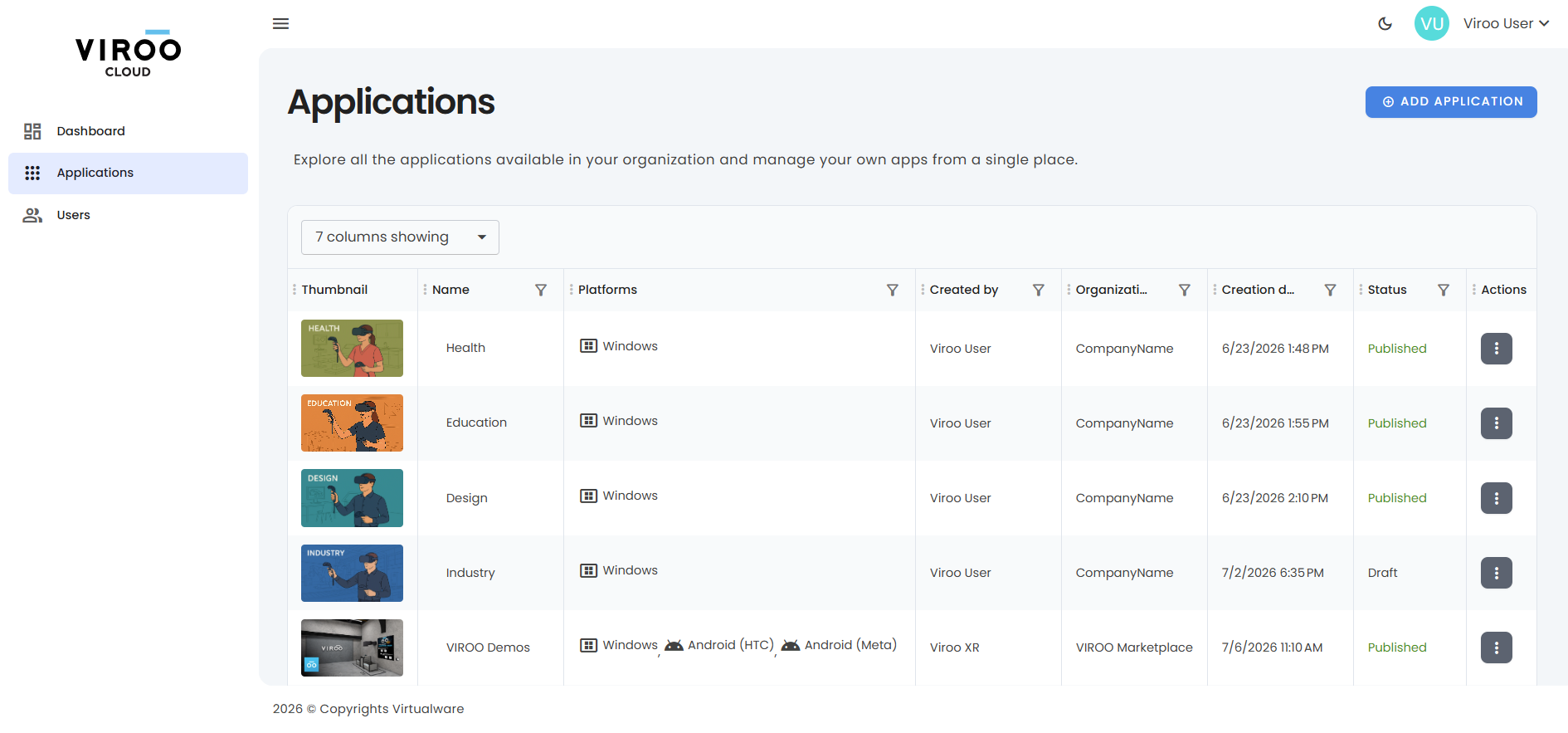
Here you can see basic information about your apps, and also perform some basic management:
Information
- Thumbnail: Application preview image
- Application name: Name of the application
- Platforms: Supported platform (for example Windows)
- Created by: User who created the application
- Organization: Associated organization
- Creation date: Date of creation
- Status: Indicates if the application is available (published)
- Actions: Context menu for managing the application
Also note that some of these columns allow filtering to search for specific information.
Available actions
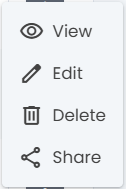
Each application includes an Actions (⋮) menu with:
- View: Inspect application details
- Edit: Review application metadata or files
- Delete: Remove the application
- Share: Manage access permissions
To Edit, Delete, or Share an application, you must have the content manager role and either be the owner of the application or have received those permissions through sharing.
Adding a new VIROO Application
To add a new application, you must have the content manager role. Then select + ADD APPLICATION.
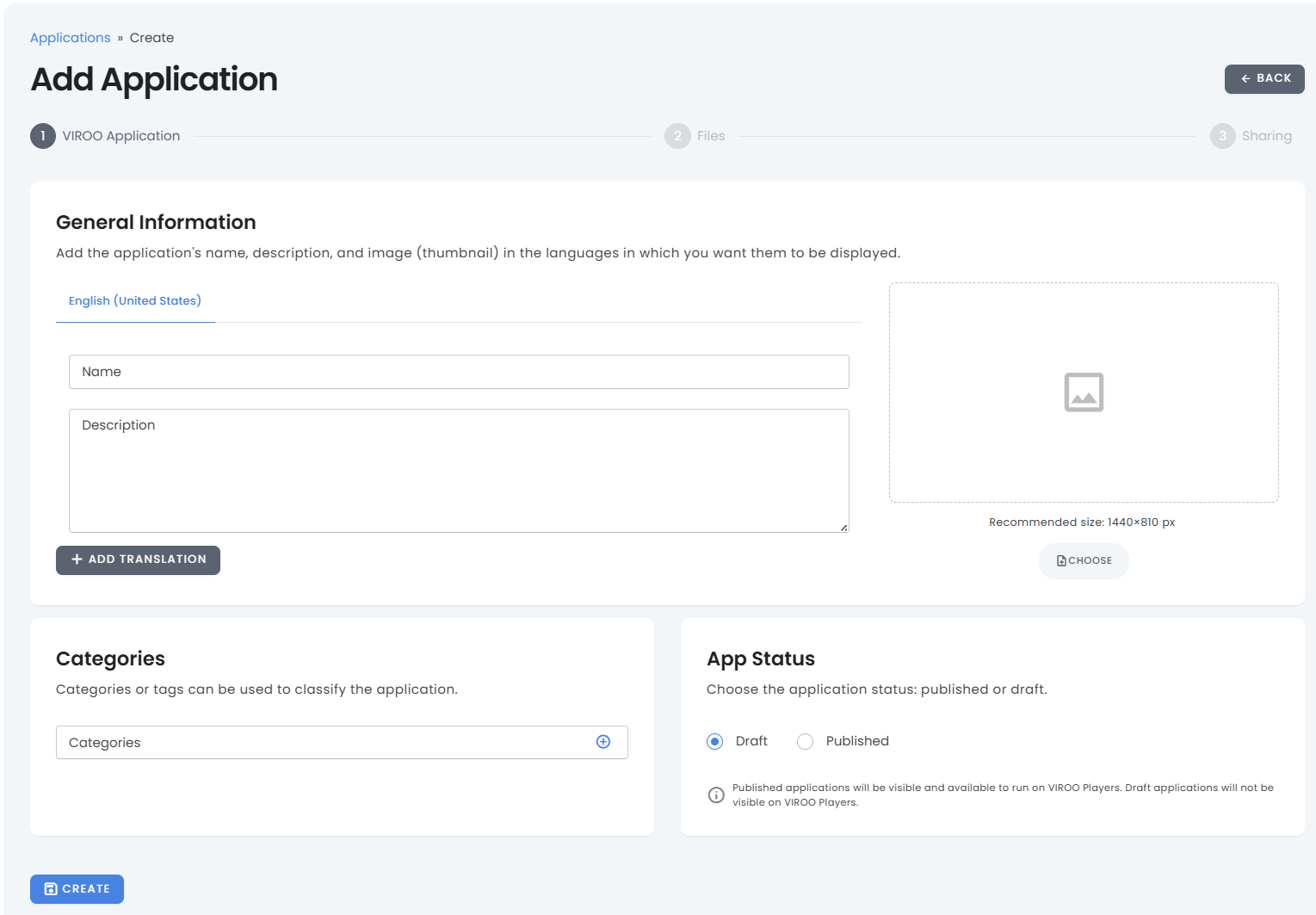
Manage the VIROO app metadata
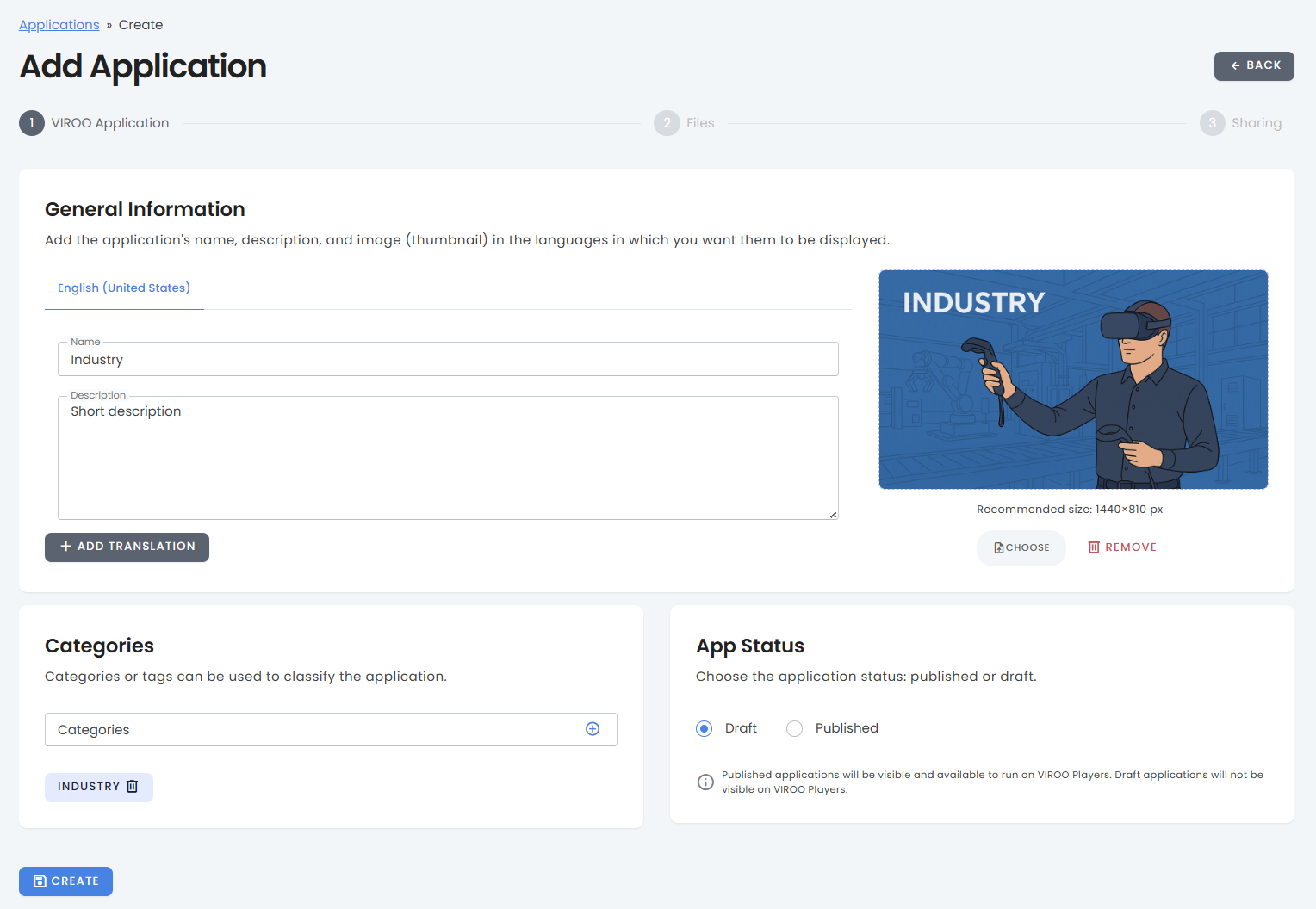
- Define the application’s general information:
- Name: Application name
- Description: Short description (recommended length: up to 100 words)
- Translations: Add languages using
+ ADD TRANSLATION
- Choose the application's thumbnail:
- Upload an image using the Choose button
- Recommended resolution: 1440×810
- You can replace or remove it at any time
- Add categories or tags to improve organization and filtering
- Establish the application status:
- Draft: Not visible in VIROO Players
- Published: Available and visible in VIROO Players
Important
Only published applications are available to run in VIROO Players.
Select CREATE to continue. This will redirect you to the next step.
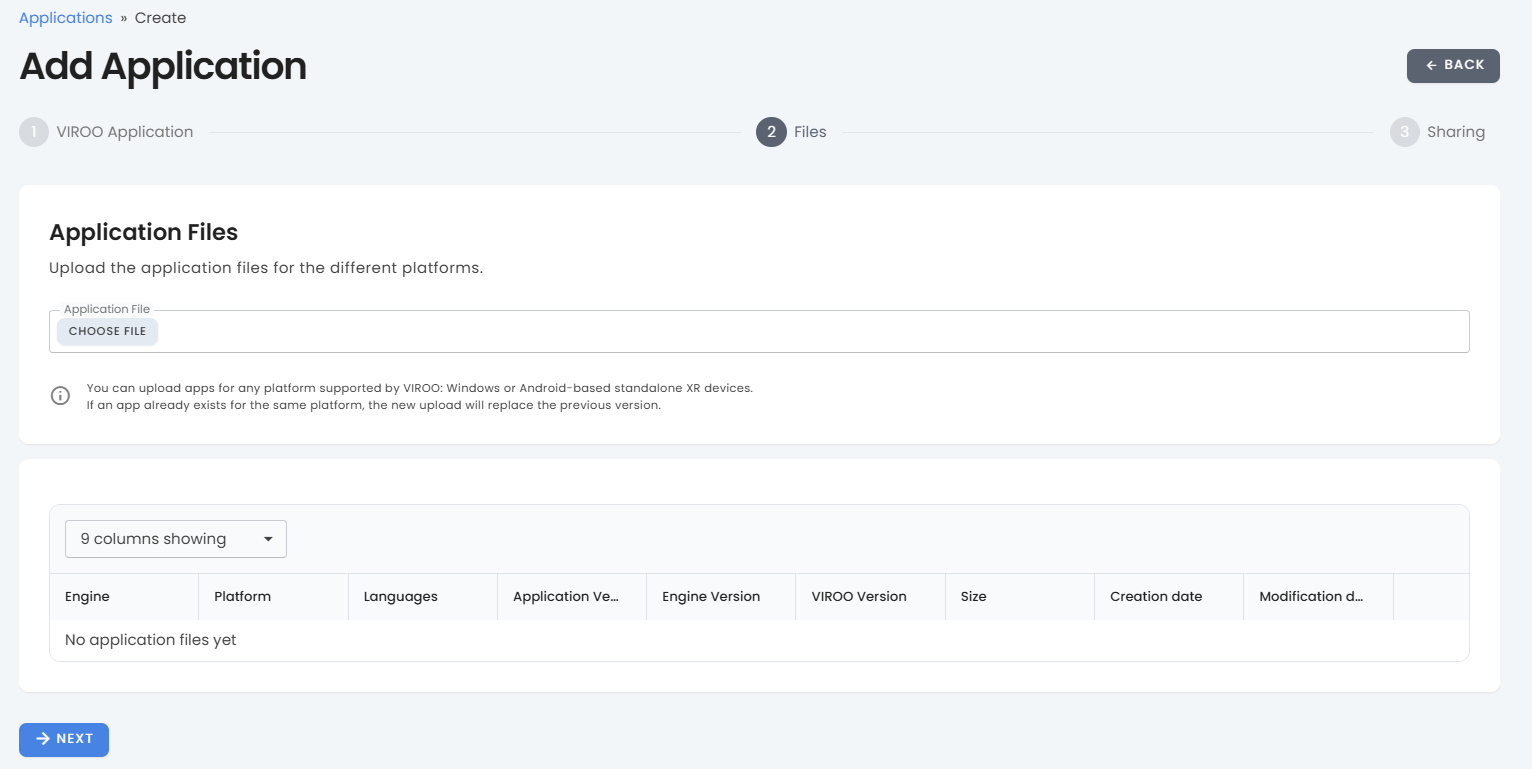
Uploading application files
This is where you can upload all platform versions of one application: Windows, VIVE, Pico, Meta Quest, etc.
Upload the application package by selecting Choose file. You can upload .zip or .virooapp files for Windows applications, or .apk files for Android applications.
The .virooapp format adds encryption to the application package.
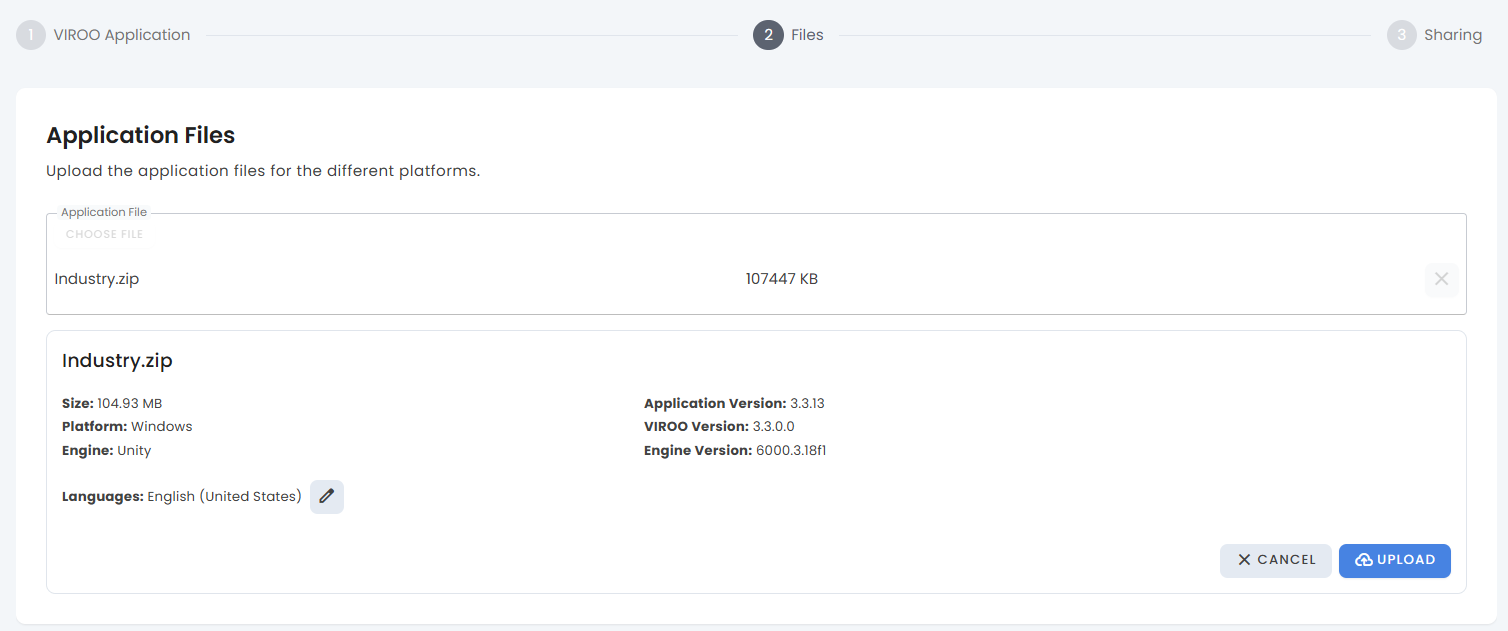
After selecting the file, VIROO detects:
- Languages
- Platform (for example: Windows)
- Engine (for example: Unity)
- Application version (your personal App version)
- Viroo version (VIROO Studio package version)
- Engine version
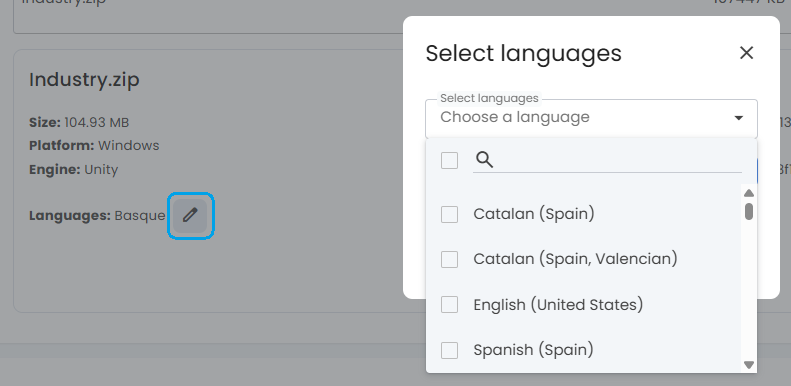
Select the edit icon next to Languages to choose supported languages from the list.
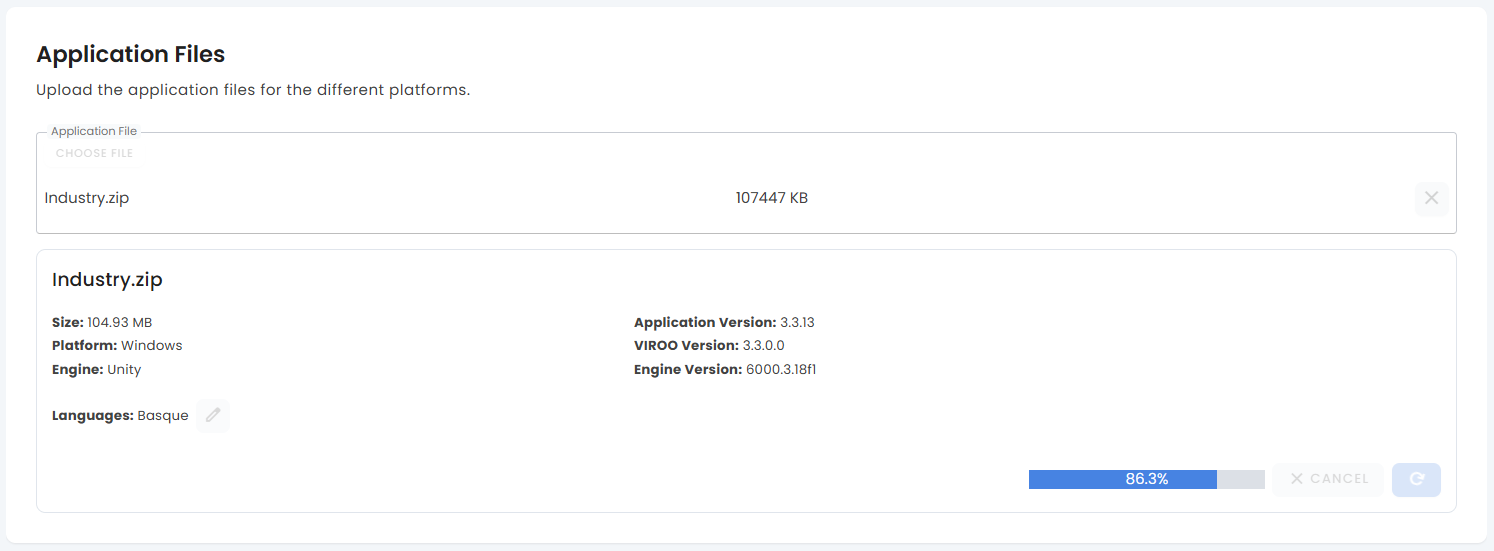
Select Upload. This will show a progress bar with the upload status. Once complete, the version will appear in the table.
The uploaded versions will include:
- Engine
- Platform
- Languages
- Application version
- Engine version
- Viroo version
- File size
- Creation and modification dates
You can delete individual versions using the delete icon.
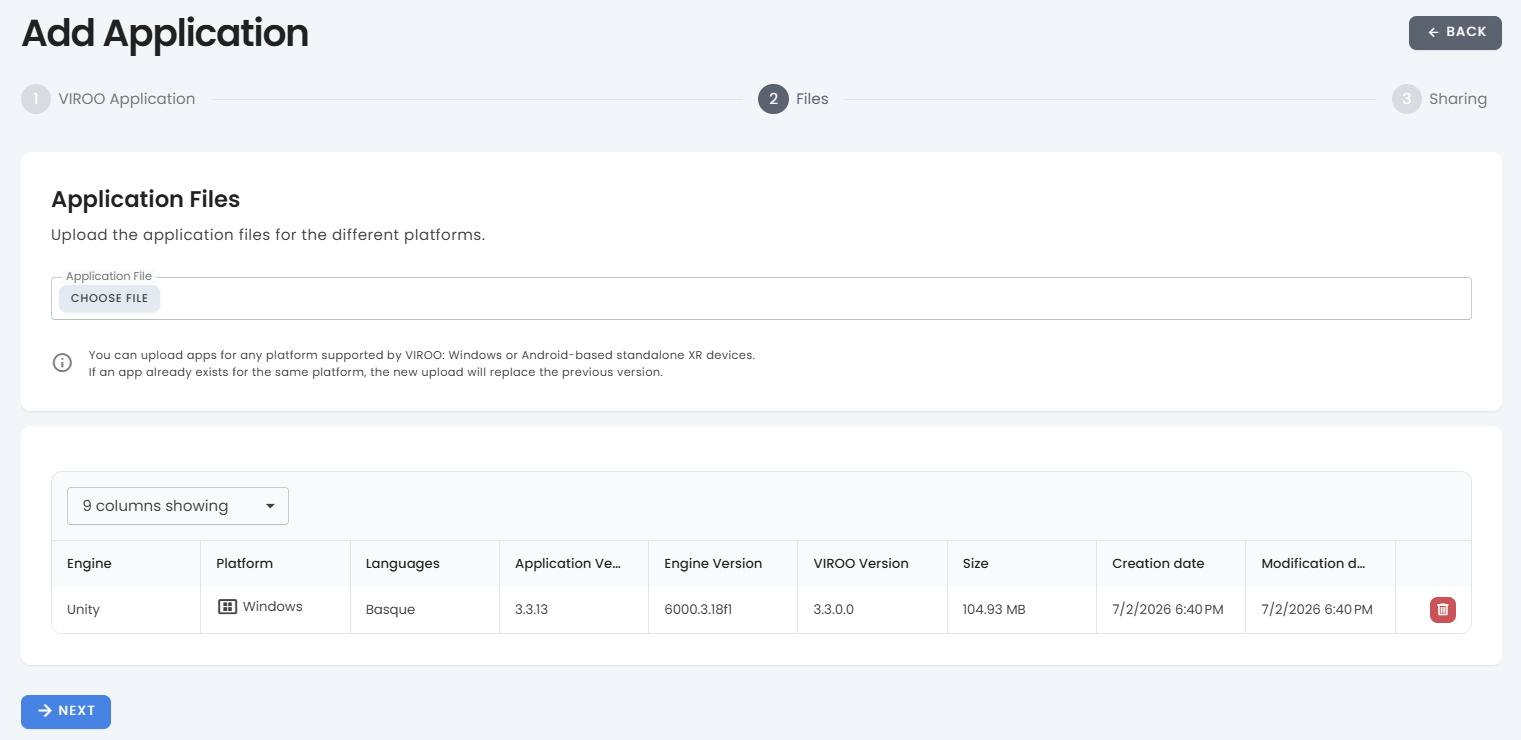
Select Next to continue to the Sharing step.
Sharing and access control
Define who can access the application.
- Private Application
- Only you manage access and can share it with other members of your organization
- Public Application
- Available to all organization members

You can also share the application with specific users:
- Search users in the Share field and select the
+ ADDbutton
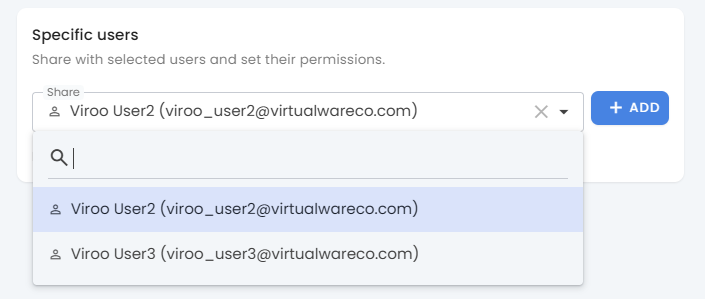
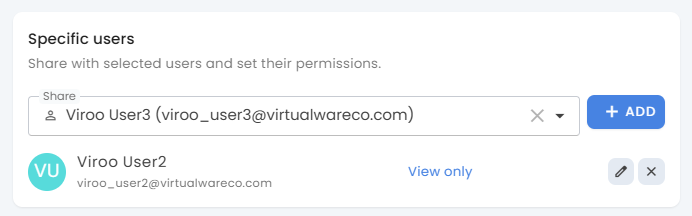
- Assign permissions:
- Select the Edit button (pencil icon) next to the user.
- Use the dropdown to select:
- View only
- Read and edit
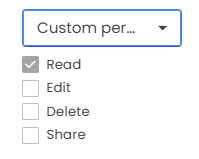
- Custom permissions
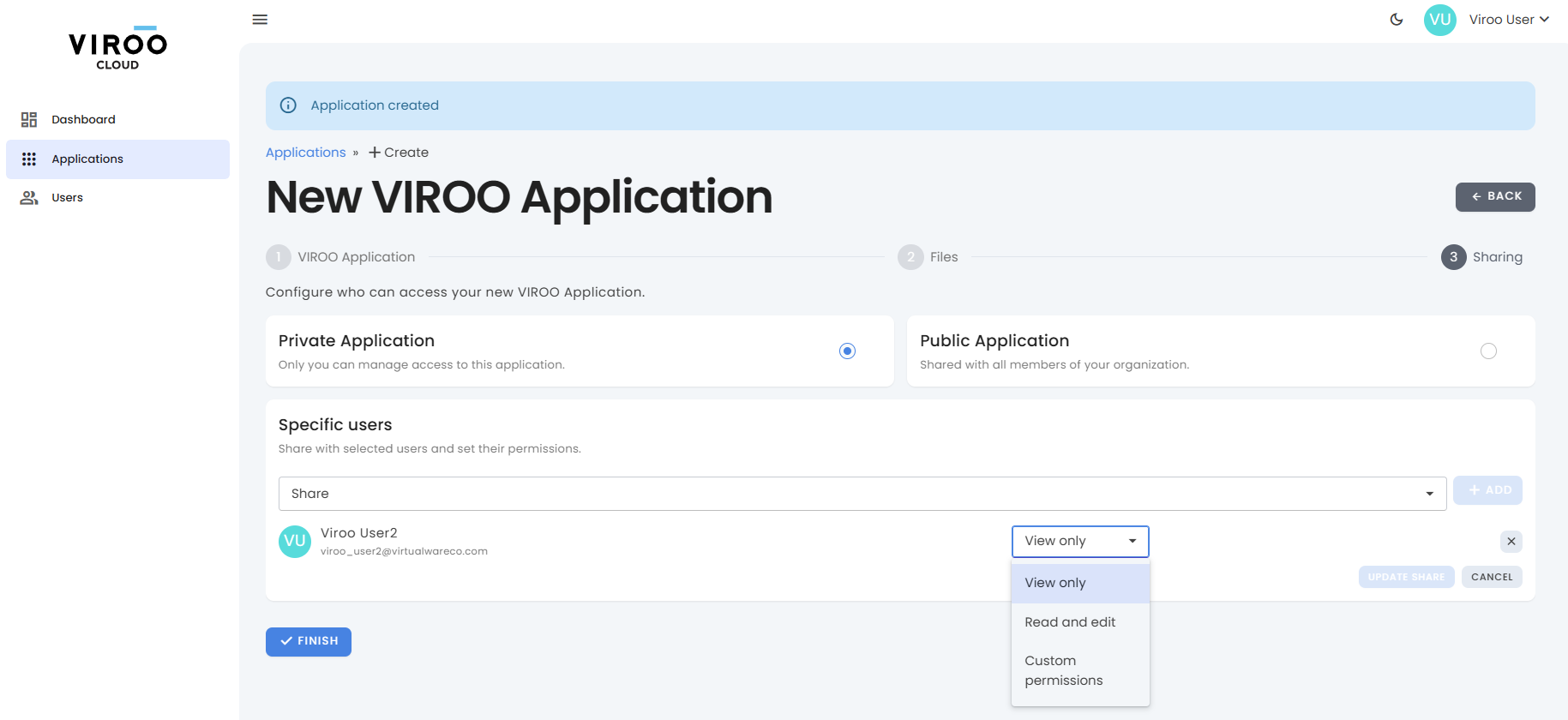
These are the available custom permissions:
Select Finish to complete the setup.