XR navigation
When launching a session from VIROO Single Player in VR mode, users can interact using either controllers or hand tracking, depending on the headset capabilities and configuration. The VIROO in-app menu offers intuitive access to all core functions: teleportation, flight mode, scene changes, audio control, avatar recentering, and more.
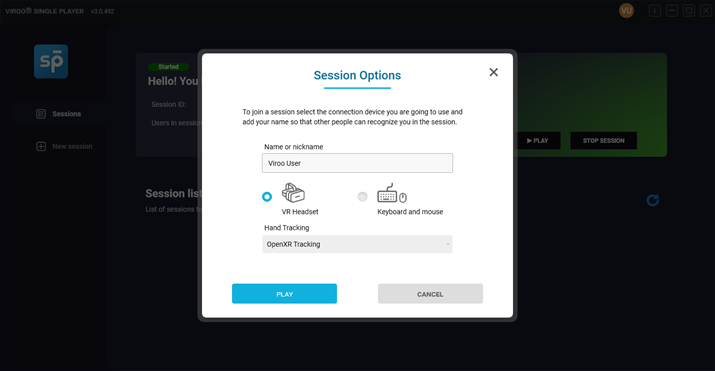
Navigation in XR adapts to the headset and users context. A training simulation, a design review, or a remote inspection session may each use different control modes. VIROO Single Player supports them all through a unified, menu-based interface reachable via controller or hand gesture.
Accessing the VIROO menu
Once the session is launched in a VR headset:
- With Controllers: Press and hold the lower of the two buttons on the left-hand controller.
- With Hand Tracking: Turn both palms upward. The VIROO menu icon will appear near your left hand. Pinch and hold the icon to open the menu.
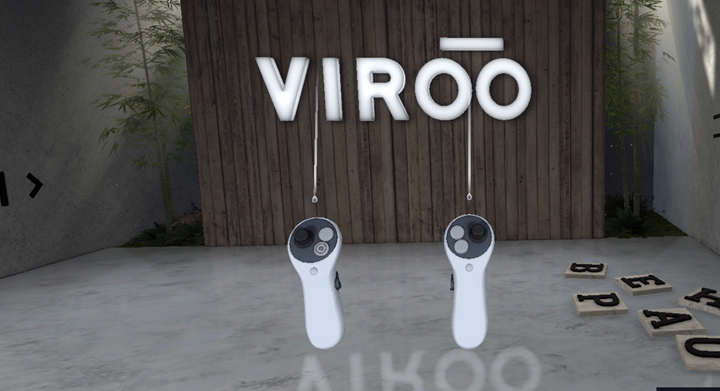
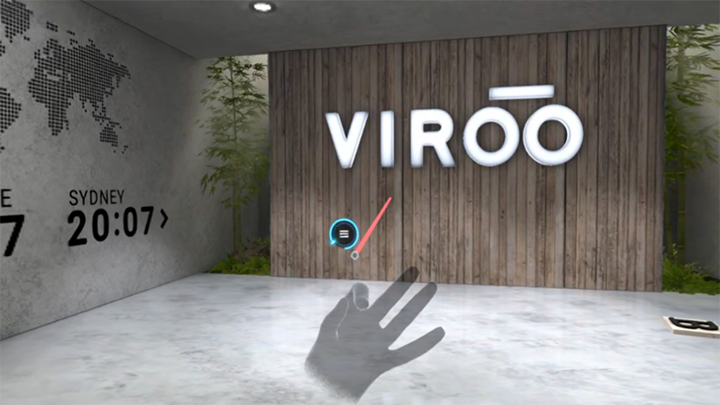
Note
If your headset supports both modes, it will now automatically switch between Hand Tracking and Controllers based on whether the controllers are active. The system will detect and adapt to the available input method during the session.
VIROO menu overview
Once opened, the VIROO Menu enables you to interact with the session using the same layout and structure, regardless of input method (controller or hands).
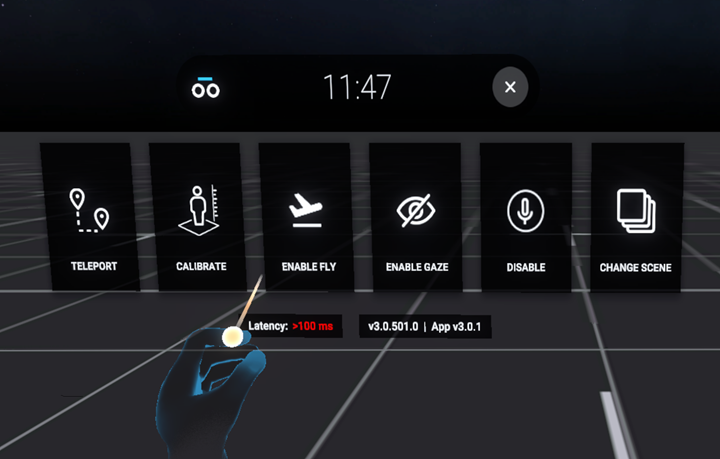
To interact:
- Controllers: Use the joystick to point and press the trigger to select.
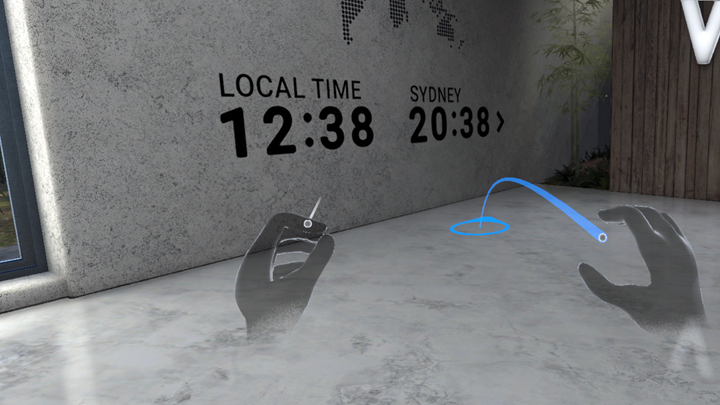
- Hands: Aim using the blue dot at your fingertip and pinch your thumb and index to select.
Teleport
Teleportation enables smooth movement within the virtual space. Depending on your input method, the activation will differ:
- Hand Tracking: Select the Teleport icon from the menu. A blue indicator will appear at valid destination points. Use a pinch gesture to confirm the teleport.
- Controllers: The Teleport option will no longer be shown in the menu when using controllers. Instead, a teleport icon has been included on the right controller.
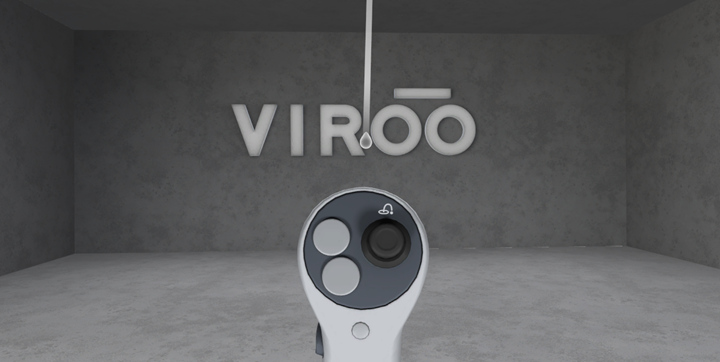
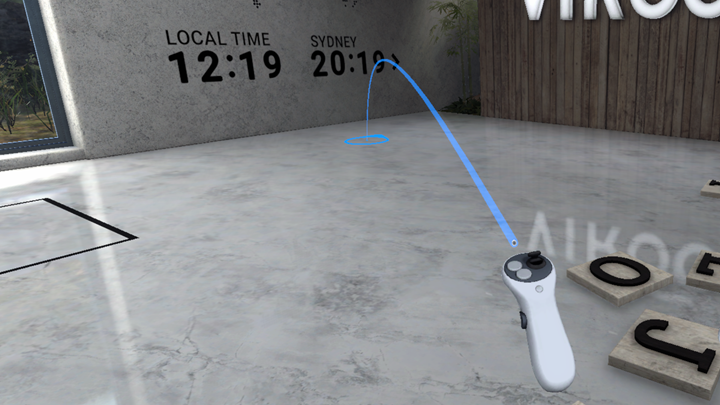
To teleport, push and hold the right joystick forward to aim at a destination. A blue indicator will appear on the floor so you can select the place you want to be teleported to. Once you release the joystick, your avatar will teleport to the selected point.
Recenter
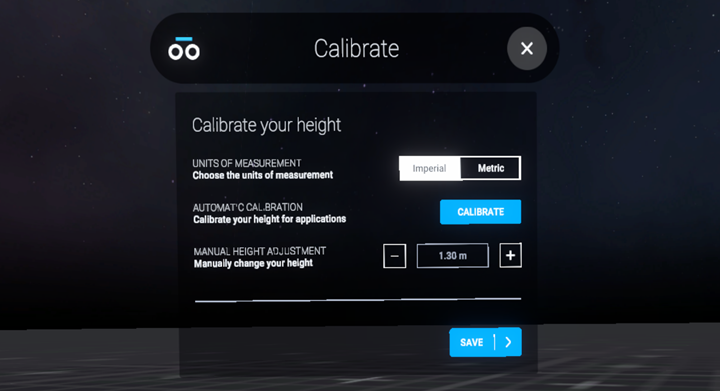
Use the Recenter function to reset your height. This is especially useful when switching users.
The Recenter option enables you to calibrate automatically, where the system calculates your height, or you can enter it manually. This can be viewed in either the metric or imperial system.
Flight mode
Flight Mode is a feature in VIROO that enable avatars to move through the air within the boundaries of the scene. When enabled, users can "fly" their avatar across the environment instead of walking or teleporting on the ground.
When Activated: Users can move vertically and horizontally through the space, flying. This can be useful for inspecting environments from overhead, navigating large areas, or accessing elevated viewpoints.
Scene Limits: Flight is restricted to the configured scene boundaries, meaning avatars can't fly beyond the predefined limits of the scenario.
When Deactivated (During Flight): If Flight Mode is turned off while the avatar is in the air, the avatar will automatically fall until it reaches the ground or floor level of the scene.
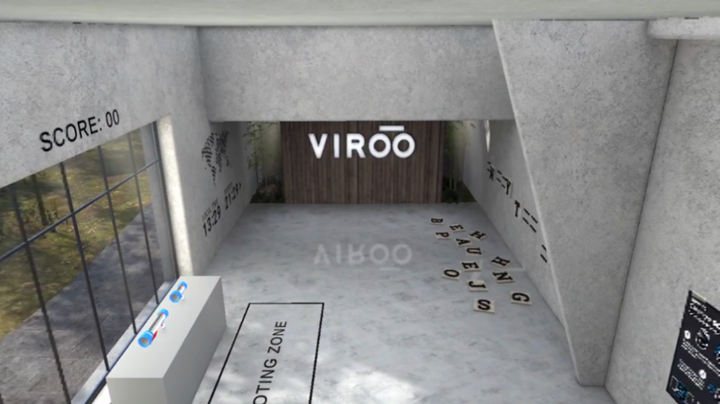
Change scene
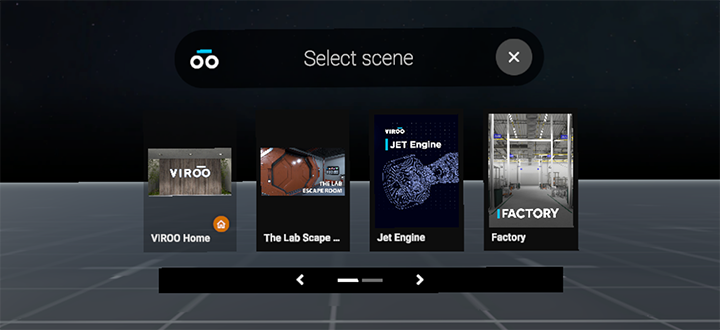
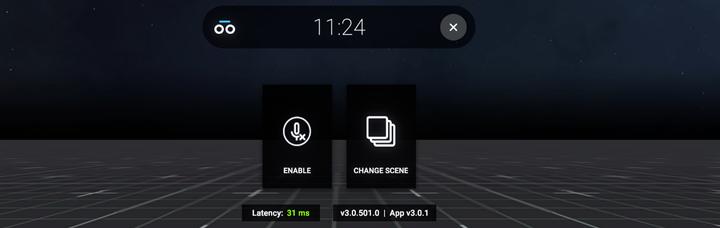
Select Change Scene from the VIROO Menu to switch to another environment.
- A list of available scenes will appear
- Select your desired scene
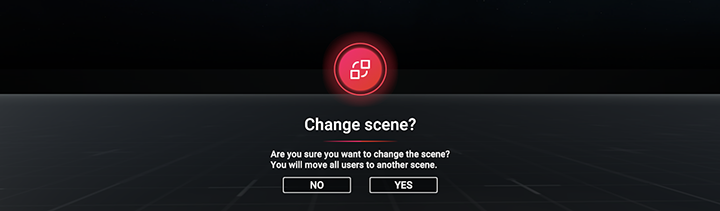
- Confirm the transition
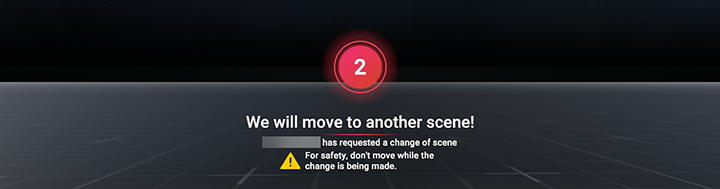
All users in the session will receive a warning and be moved to the new environment after confirmation.
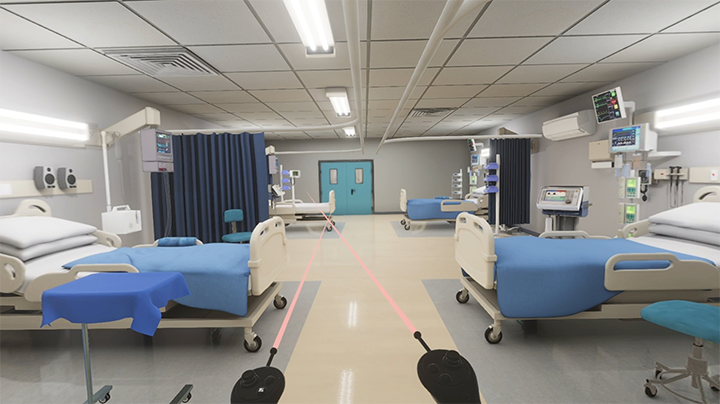
Audio Control
Microphones are enabled by default in XR mode. Use the Audio icon in the VIROO Menu to toggle your microphone on or off during the session.
Gaze interaction (optional)
If the headset and application support Gaze Mode, you can activate it from the VIROO Menu. This replaces hand or controller input with headset direction, enabling a point-and-stare navigation method.
Note: Gaze interaction is disabled by default to prevent interference with hand or controller input. It must be supported by both the application and headset.
Tip
- Hand tracking is only available on supported devices
- Keep your headset firmware and OpenXR runtime up to date for the best experience.
- The VIROO Menu layout stays consistent across input methods to simplify training and adoption.