Operation
Sessions are the core of VIROO, shared immersive experiences that your team can create, join, and manage collaboratively.
Create a session
- Go to the New session tab from the left-hand side of the interface.
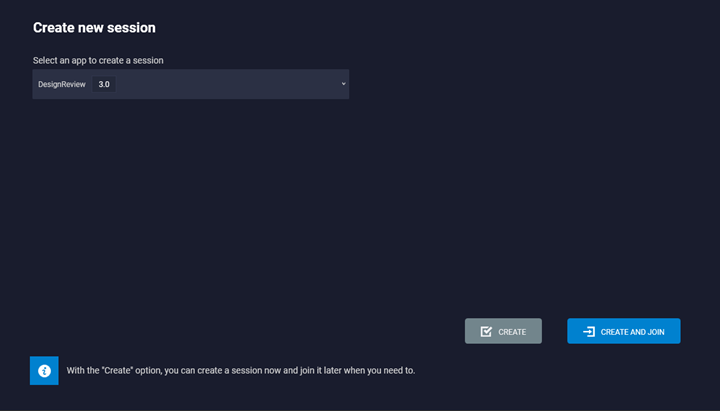
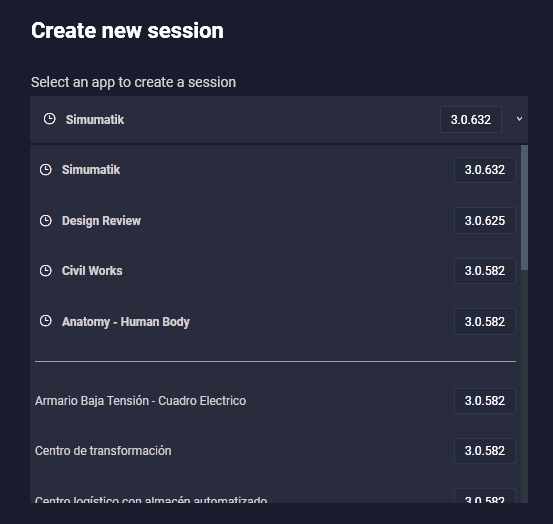
- Select the application from the drop-down menu (for example, Design Review or VIROO Demos).
- Choose one of the two available options:
- Create: Creates the session so it appears in your session list, but does not download or launch the application yet. You can join it later when ready.
- Create and Join: Creates the session and automatically downloads the application (if it’s not already installed), preparing it for launch.
Note
- Single Player will remember the last 5 applications you have used and will show them at the top of the applications list.
- The version number besides the App name corresponds to the Viroo Studio production package version. You can find information about production package versions on the VIROO Studio Updates page.
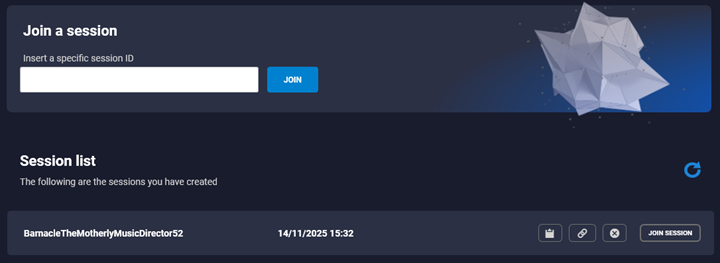
If the session is only created, it will appear in the Sessions tab, showing its Session ID and creation time.
Note
VIROO 2.6 applications are fully compatible with VIROO 3.0 players, allowing users to enjoy their existing experiences without the need to update them. This ensures a seamless transition and continued use of already developed content.
From here, Each session entry includes three options:
- Copy Session ID: The clipboard button lets you copy the Session ID to share with colleagues. They can paste it into the search box and click Join Session to enter.
- Copy Session Link: The link option generates a direct link that can be shared and, when clicked, automatically launches Single Player and joins the session.
- Close Session: Ends the session for all participants
- Join Session: Joins the session.
Join a session
You can create and join a session in one click using the second option. By doing that, you will be able to start the immersive experience right away.
If you need to join an existing session:
- Enter the specific Session ID in the field at the top and click Join Session, or
- Select one of your already created sessions from the list and click Join Session.
Tip
You can join sessions across different organizations by entering the Session ID if both organizations have access to the same app.
After you have joined an existing session, you will then be able to play its content. Use the Play button to enter the immersive experience.
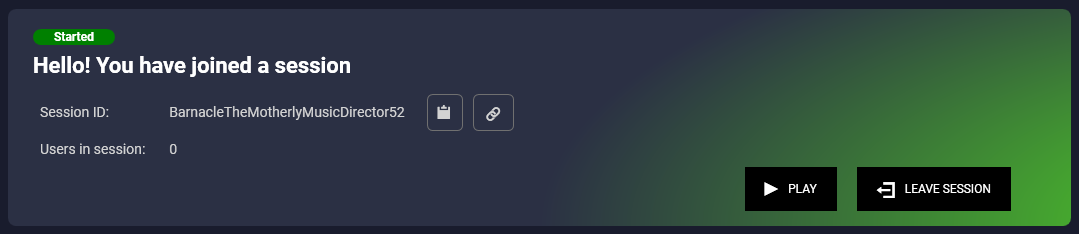
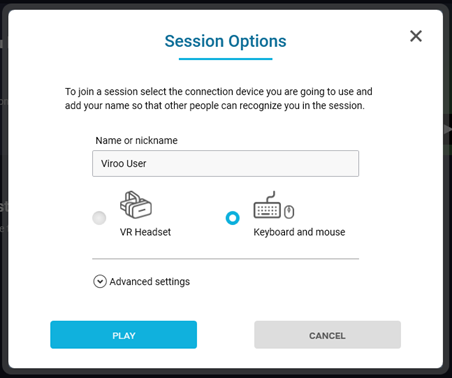
Then select your desired Session Options to launch your immersive experience.
VIROO Single Player offers two modes: XR Headset and Keyboard and Mouse (desktop).
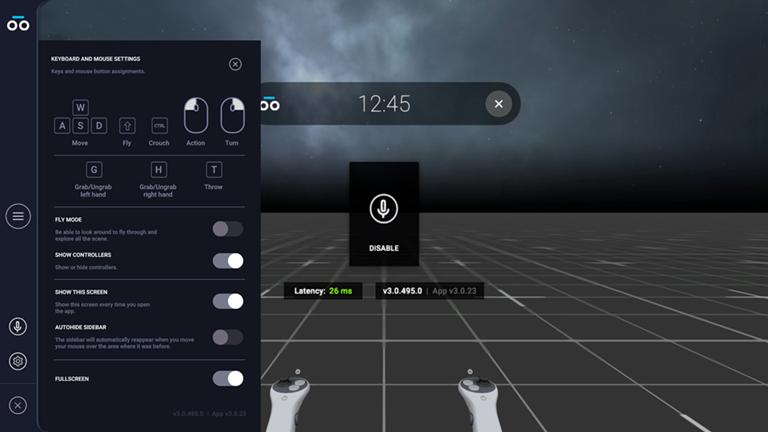
Once launched, users are connected to the Session and Application. Navigation depends on the launch mode: XR Headset or Keyboard and mouse.
Leave or close a session
Sessions can be exited or ended in different ways, depending on your role and the level of disconnection required::
Leave Session (available for all users): This will disconnect you from the session, and you will need to rejoin to play immersive content again. If you are the session creator, the session will remain active for other participants.
Close Session (only available for Session Creator): If you are the session creator, this will end the session for all participants and disconnect all devices.
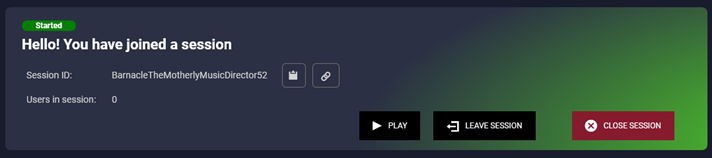
Only the session creator can close a session. Other players can join while it’s active and will be disconnected automatically if the creator closes it.
To end the session while in desktop mode, click on the X button at the bottom left corner to return to VIROO Single Player. Then, press Leave Session.
Tip
- Use the Clipboard or the Share link option to share Session IDs with coworkers.
- Remember, the creator is able to Stop a session (Stop option to close the experience and Stop Session for ending it for everyone) and other users are able to Leave the session.
- Refreshing the Session list may help during high workload periods.
Watch the video: