User management
This page explains how to manage users within the VIROO Cloud platform. It includes steps to view, create, and import users, assign roles, and manage their status.
The users section enables users with the role User Manager to:
- View all users in the system
- Add new users manually
- Import users via CSV
- Assign roles and language preferences
- Enable or disable accounts
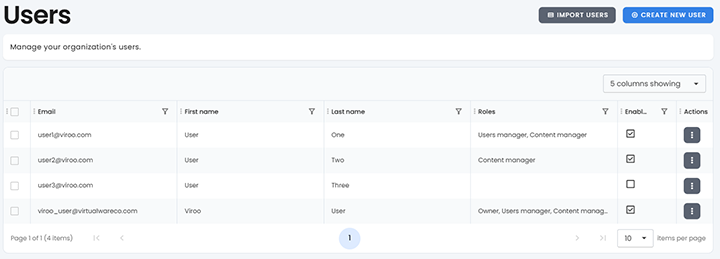
User list interface
Access this section from the left-hand menu by clicking on Users. The list displays all registered users.
Columns
- Email: the user’s email address
- First name: the user’s first name
- Last name: the user’s last name
- Roles: roles assigned to the user
- Enabled: account status
- Actions: edit or manage the user
Each column can be filtered.
VIROO user roles
VIROO defines four main user roles, each with different permissions:
| Role | Description |
|---|---|
| Default roles | Assigned automatically. Users can join VIROO sessions. |
| Content Manager | Grants the ability to manage the organization content. |
| User Manager | Enables creating, editing, and disabling user accounts. |
VIROO user permissions
| Permission | Description |
|---|---|
| Create Session | Enables users to create VIROO sessions. |
Create a new user
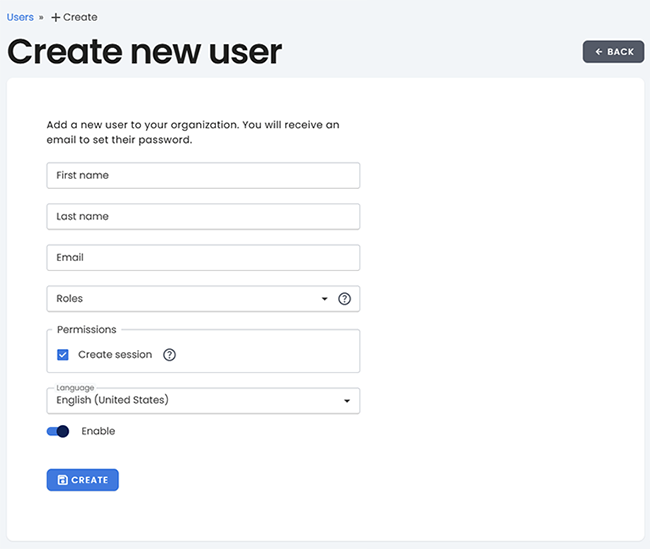
Click Create new user to open the registration form.
Required fields
- First name
- Last name
- Roles:
- Default (leave blank)
- Content Manager
- User Manager
- Permissions:
- Create Session
- Language: default portal language
- Enabled: toggle to activate or deactivate the account
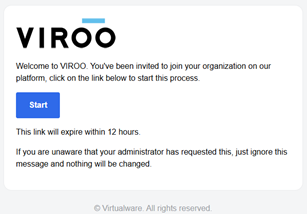
Once the user is created, they will receive an email to confirm their account within 12 hours and set their password.
Tip
- Double-check email addresses before saving
- Assign only the necessary roles
- Use CSV import for batch onboarding
Import users
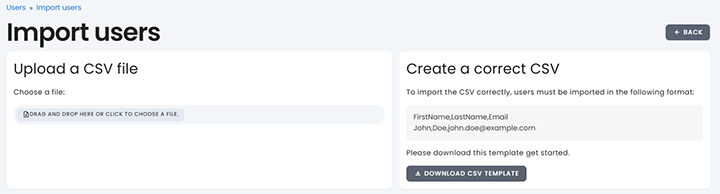
Click Import users and upload a CSV file using the required format:
FirstName,LastName,Email
You can drag or manually select the file. A template is provided.
Edit and manage users
Toggle the edit options through the 3 dots on the right of each user:
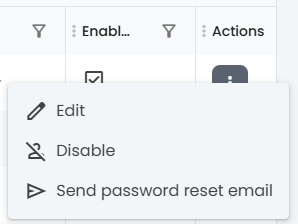
Through this menu you can:
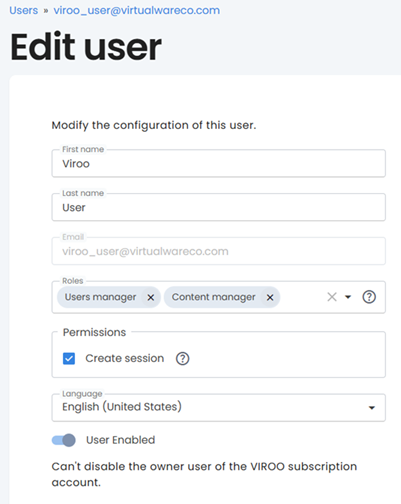
- Edit First Name, Last Name, roles, permissions and language of the user (please see image below)
- Disable the account
- Send a password reset email
Changes are applied immediately and can be reversed.