XR navigation
When launching a session from VIROO Single Player in VR mode, users can interact using either controllers or hand tracking, depending on the headset capabilities and configuration. The VIROO in-app menu offers intuitive access to all core functions: teleportation, scene changes, audio control, avatar recentering, and more.
Navigation in XR adapts to the headset and users context. A training simulation, a design review, or a remote inspection session may each use different control modes. VIROO Single Player supports them all through a unified, menu-based interface reachable via controller or hand gesture.
Accessing the VIROO menu
Once the session is launched in a VR headset:
- With Controllers: Press and hold the three-line button on the left-hand controller.
- With Hand Tracking: Turn both palms upward. The VIROO menu icon will appear near your left hand. Pinch and hold the icon to open the menu.
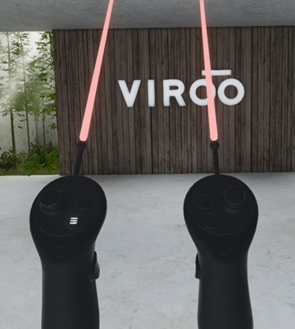
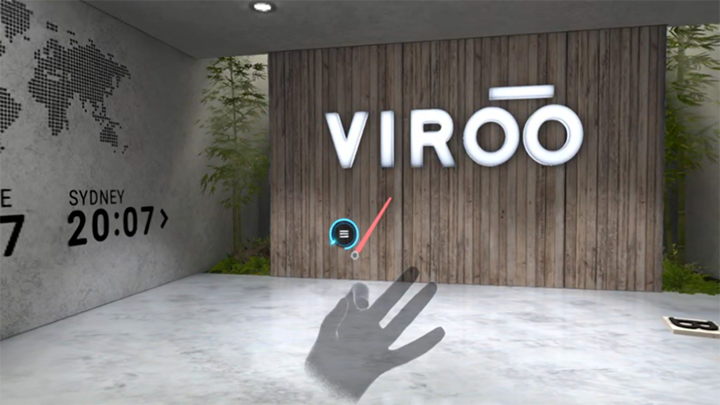
VIROO menu overview
Once opened, the VIROO Menu enables you to interact with the session using the same layout and structure, regardless of input method (controller or hands).
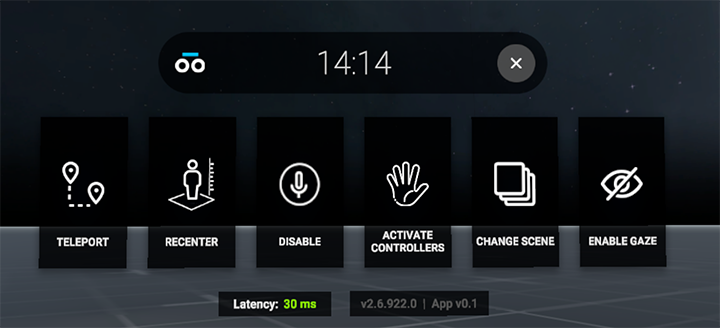
To interact:
- Controllers: Use the joystick to point and press the trigger to select.
- Hands: Aim using the blue dot at your fingertip and pinch your thumb and index to select.
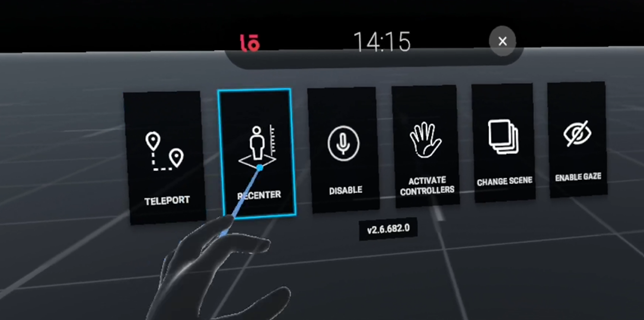
Teleport
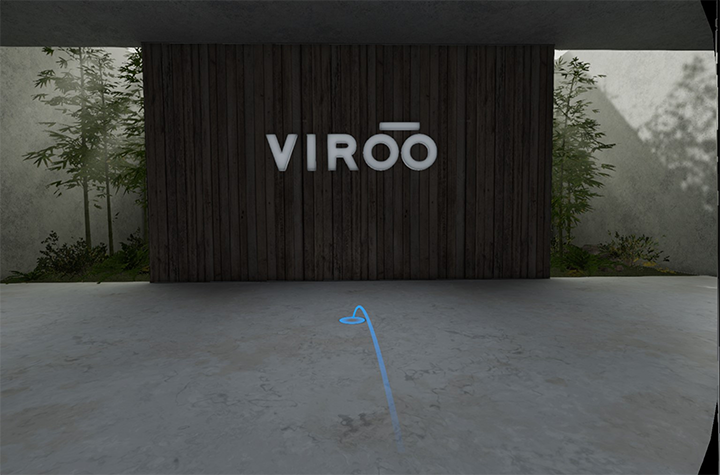
Teleportation enables smooth movement within the virtual space. Just select the Teleport icon from the menu.
- A blue circle will appear at valid destination points.
- A red circle indicates teleportation isn't allowed.
To teleport:
- Controller: Press the trigger once the target is selected.
- Hand Tracking: Pinch to confirm teleport.
Recenter
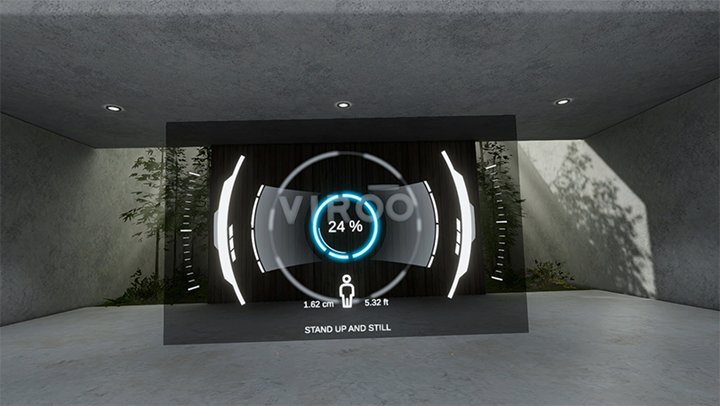
Use the Recenter function to reset your height. This is especially useful when switching users. Once activated, the system will automatically recalibrate your avatar height. A progress bar will mark completion, reaching 100% when fully recentered.
Change scene
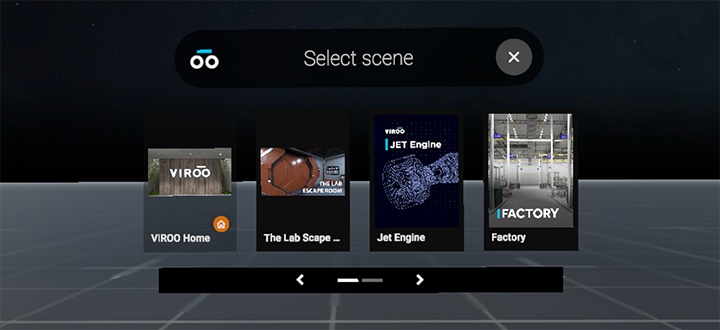
Select Change Scene from the VIROO Menu to switch to another environment.
- A list of available scenes will appear
- Select your desired scene
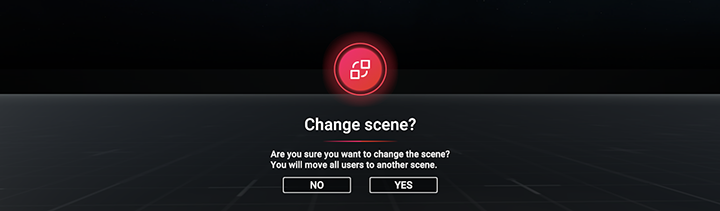
- Confirm the transition
All users in the session will receive a warning and be moved to the new environment after confirmation.

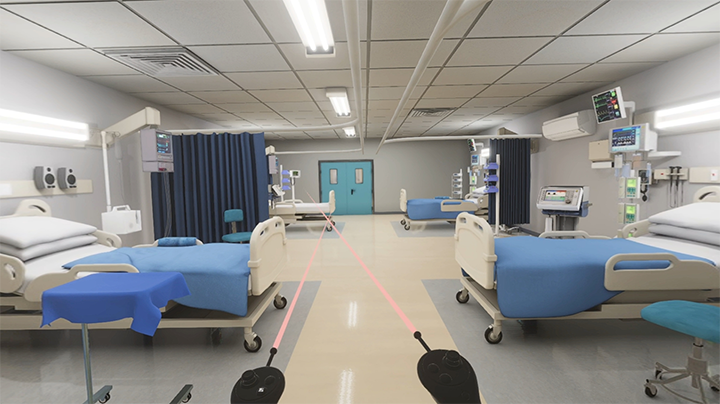
Audio Control
Microphones are enabled by default in XR mode. Use the Audio icon in the VIROO Menu to toggle your microphone on or off during the session.
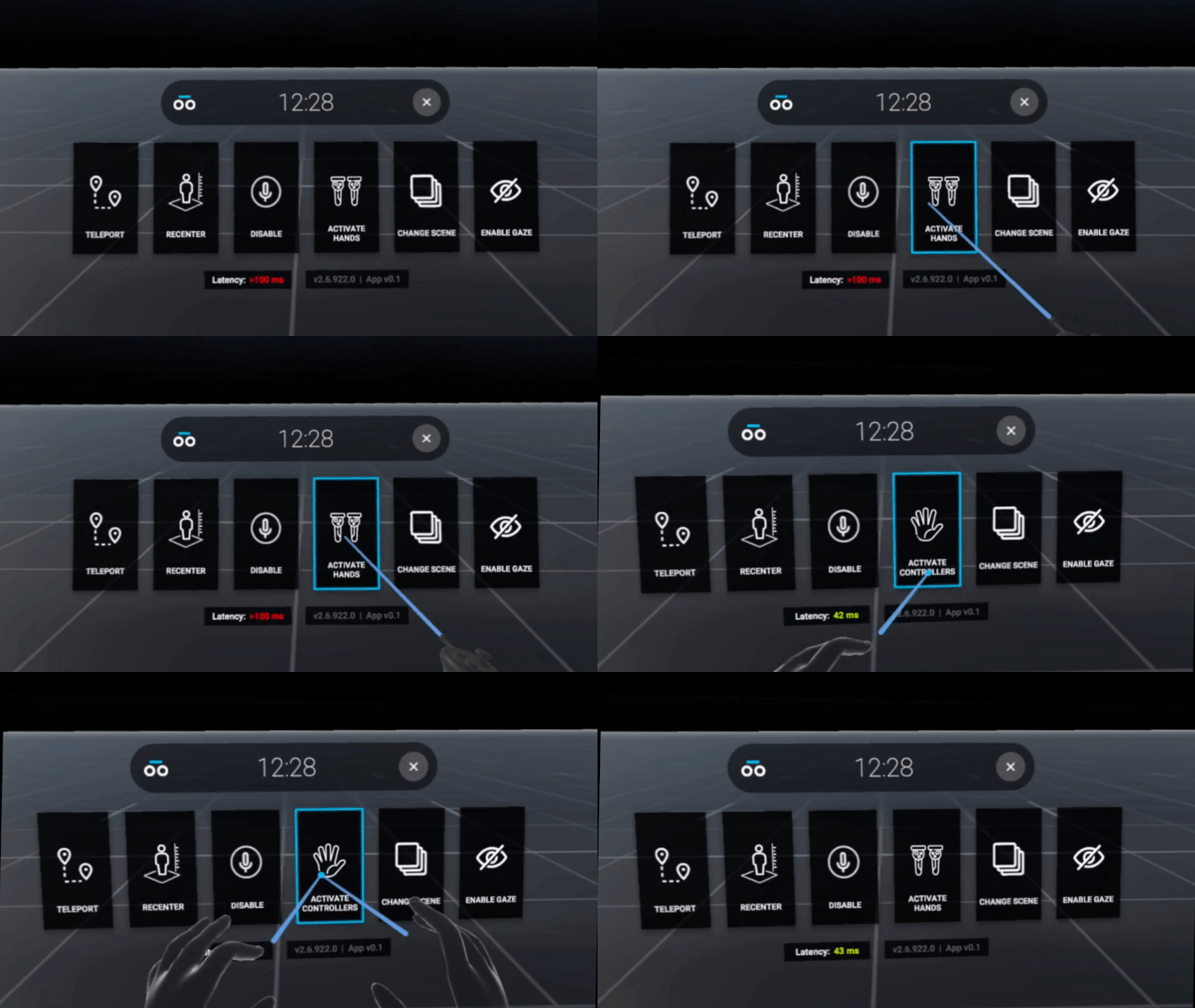
Switch input mode (Hand to Controller)
If your headset supports both modes (for example, Vive Focus 3 or Focus Vision), you can toggle between Hand Tracking and Controllers directly from the VIROO Menu. This enables users to switch between input types based on comfort or tasks without needing to restart the session.
Gaze interaction (optional)
If the headset and application support Gaze Mode, you can activate it from the VIROO Menu. This replaces hand or controller input with headset direction, enabling a point-and-stare navigation method.
Note: Gaze interaction is disabled by default to prevent interference with hand or controller input. It must be supported by both the application and headset.
Tip
- Hand tracking is only available on supported devices like the HTC Vive Focus 3.
- Keep your headset firmware and OpenXR runtime up to date for the best experience.
- The VIROO Menu layout stays consistent across input methods to simplify training and adoption.